Study features
See how long each answer took
RJT records the time from opening the answer form to submitting it, and shows a speed cue.
Notice hesitation, not just mistakes
A slow correct answer can still mean fragile understanding. RJT stores elapsed time and shows a simple cue on screen.
Members can also review times in My Page history. Guest on-screen stats are session-oriented and are not the same as saved member history.
This is not a countdown timer and not JLPT official timing.
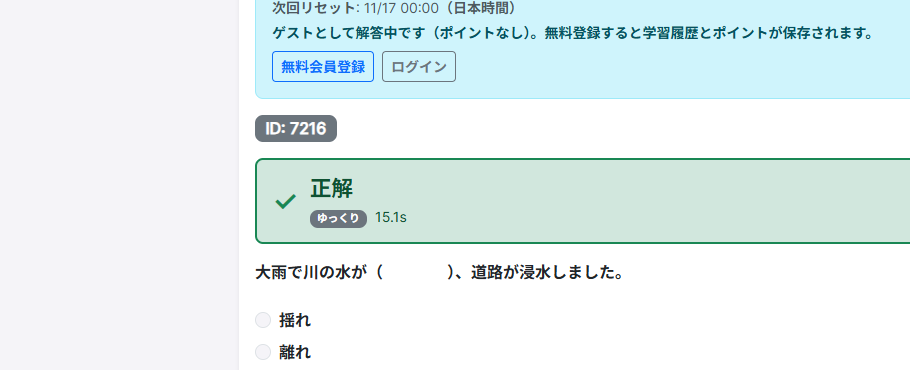
Real RJT screen
Example of a correct result with a “Slow” cue and elapsed seconds (e.g. 15.1s).
Quick tips
- Timing starts when the question answer UI is ready and locks when you submit.
- Speed labels are guidance only—not pass/fail or a hard limit.
- See the how-to guide for full UI walkthroughs.
What is included
Elapsed-time capture and review. Not an exam countdown mode.
Related features
Try it free—no sign-up required
Start with one free question and notice your own pace.